Share
Promote to a team
Move a local wiki to a team wiki with one request. The agent walks you through sign-in and shows what will move before it moves anything, so everyone edits the same pages and every teammate's agents write into them.
A team wiki holds the same pages as your local wiki, hosted so your team can use them together. Teammates read, edit and comment in their browser with nothing to install, every edit keeps its history, and each teammate’s agents write into the same pages.
You can start a team wiki at any point. Your local files stay where they are.
Move it
Ask your agent, with a team name if you have one in mind:
Move this wiki to a team wiki for Northwind.
The agent walks you through each step and waits for you where you need to act.
1. Install the team add-on
The team wiki needs a small add-on plugin, which adds the sign-in. It is separate so a local wiki never asks you to sign in. The agent asks before it installs it.
An agent loads plugins only when a session starts, so after the install:
- Claude Code: type
/exit, then runclaude --continuein the same folder to come back to the same conversation. - Codex: sign in from a terminal (below), then start a new Codex session in the project and ask it to continue.
2. Sign in
In Claude Code, run:
/mcpChoose the team server and pick Authenticate. A browser page opens where you sign in or create an account. Tell the agent when it says you are connected.
In Codex, run this in a terminal, and sign in on the page it opens:
codex mcp login nimbalyst-team3. Choose a team
- No team yet: the agent proposes a name (yours, or the owner of the project’s git remote) and creates the team, its first project and a Home page.
- Already in a team: if you are a team admin, connect to one of its projects or create a new project. If you are not, ask a team admin to connect the project for you.
A project folder without a git remote works too.
4. Approve the copy
The wiki server on your machine signs in once more with the same account, so it can copy pages straight from your files to the team wiki without them passing through the conversation. An approval page opens in your browser; check that it shows the code the agent gives you, and approve.
5. Preview and move
The agent first shows what will move: how many pages, drawings and sheets, typed pages, types and linked files, into which project, and anything it cannot move with the reason. Confirm, and it moves everything in one step:
- pages and typed pages, with their hierarchy, order and fields
- type definitions
- drawings, mind maps, spreadsheets and other editor pages
- images and attachments that pages link to
- links between pages, rewritten to point at the team pages
If the move is interrupted, ask again. It picks up where it stopped and does not duplicate pages.
6. Open it and invite people
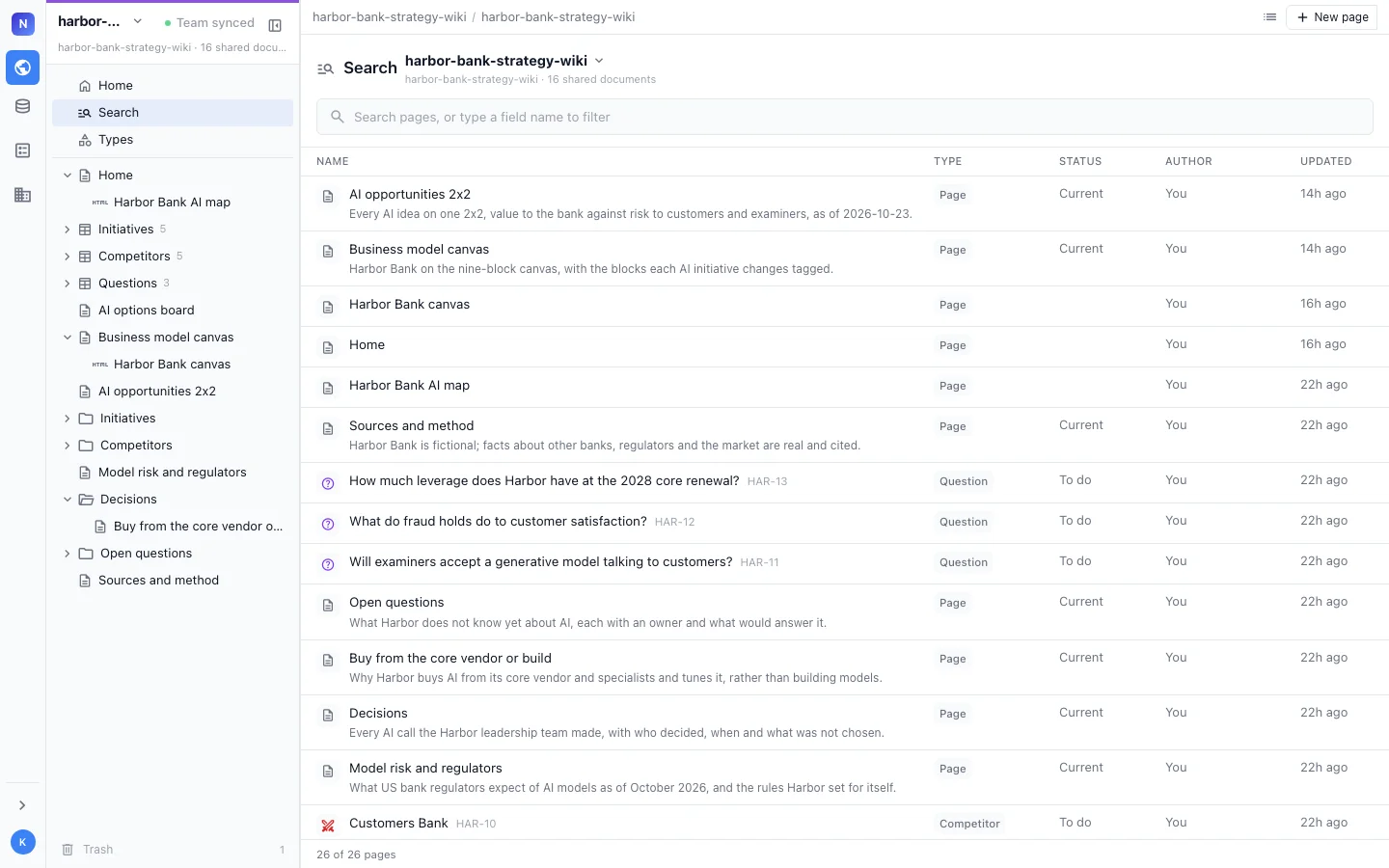
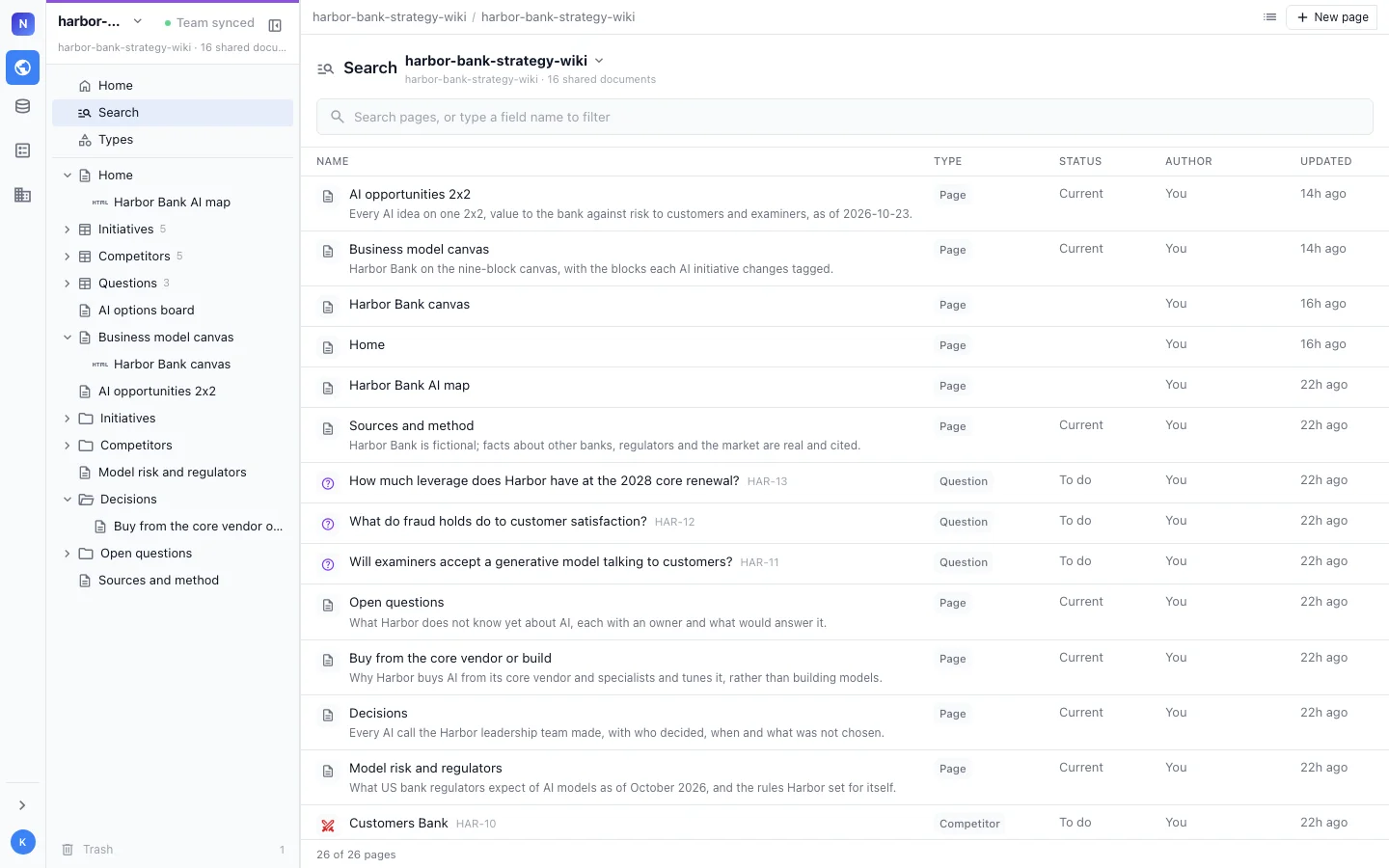
The agent opens the team wiki in your browser and offers to invite people by email or create an invite link. See Invite people.
7. Commit the connection
The agent writes a small connection file at the project root so your teammates’ agents find the same team wiki. If the project is in git, commit it:
git add .nimbalyst/wiki.json
git commit -m "Connect the wiki to our team"
In Claude Code, the agent can also add the wiki plugins to the project’s .claude/settings.json, so teammates who open the project in Claude Code are offered them. Commit that file too.
After the move
- Your local files are kept, marked as moved, and the local Home page starts with a line pointing at the team wiki.
- From then on, agents in this project use the team wiki. The local files are the copy you moved from and do not receive edits made on the team.
- Publishing a static site reads the local files, so a site you export after the move shows the wiki as it was when you moved it.
From a terminal
nim moves the wiki without the add-on, which also works for Cursor, VS Code and other agents:
nim login                          # sign in in the browser
nim wiki team-create "Northwind"   # a new team; its first project is connected to this project
nim wiki move-to-team --dry-run    # preview what will move
nim wiki move-to-team              # move it
nim wiki move-to-team ends with a link to the team wiki’s Home page. Already in a team? Run nim wiki status to see your teams and whether this project is connected.
To keep working on the team wiki from Cursor, VS Code or another MCP agent, add the team server to the same MCP config as the local one. The agent asks you to sign in the first time it connects.
{
  "mcpServers": {
    "team-wiki": {
      "type": "http",
      "url": "https://sync.nimbalyst.com/mcp"
    }
  }
}